
Reports & dashboards
Everything in the Insights group is read-only, so any role from Viewer up can read it. It’s where you watch the business: what’s active, what’s being used, and what’s running. (Viewer and up)
Dashboard
Section titled “Dashboard”Insights → Dashboard is the at-a-glance view. Along the top, eight KPI cards: active subscriptions, trials, active users, license utilization, churn, peak sessions, trial conversions and entitlements issued (in the last 30 days — sold or self-service; offers are not counted). Click a card’s title, or the name of a count in the at-risk panel, to open the usage report on that metric for the period you have selected. Below the cards:
- a trend chart of active subscriptions, active trials and expiring entitlements,
- the entitlement mix and movement (issued / converted / churned),
- the trial funnel,
- quota health and an at-risk panel,
- a world map of where your customers are: each country is shaded by its number of organizations, and a dot sized by activations shows where your software is used. Hover a country or a dot to read its organizations, users and activations.
On plans with in-app feature ratings, top-rated features and value-delivered panels appear as well.
The panels have no controls of their own: the period selector at the top right applies to the whole page. To explore a figure, open it in the usage report. Usage by plan and the top consumers of a metered metric are on each product’s Usage tab.
The KPI cards and the at-risk counts update hourly, so a change you make now shows up there within the hour. The tables that list individual entitlements, users and subscriptions are always current.
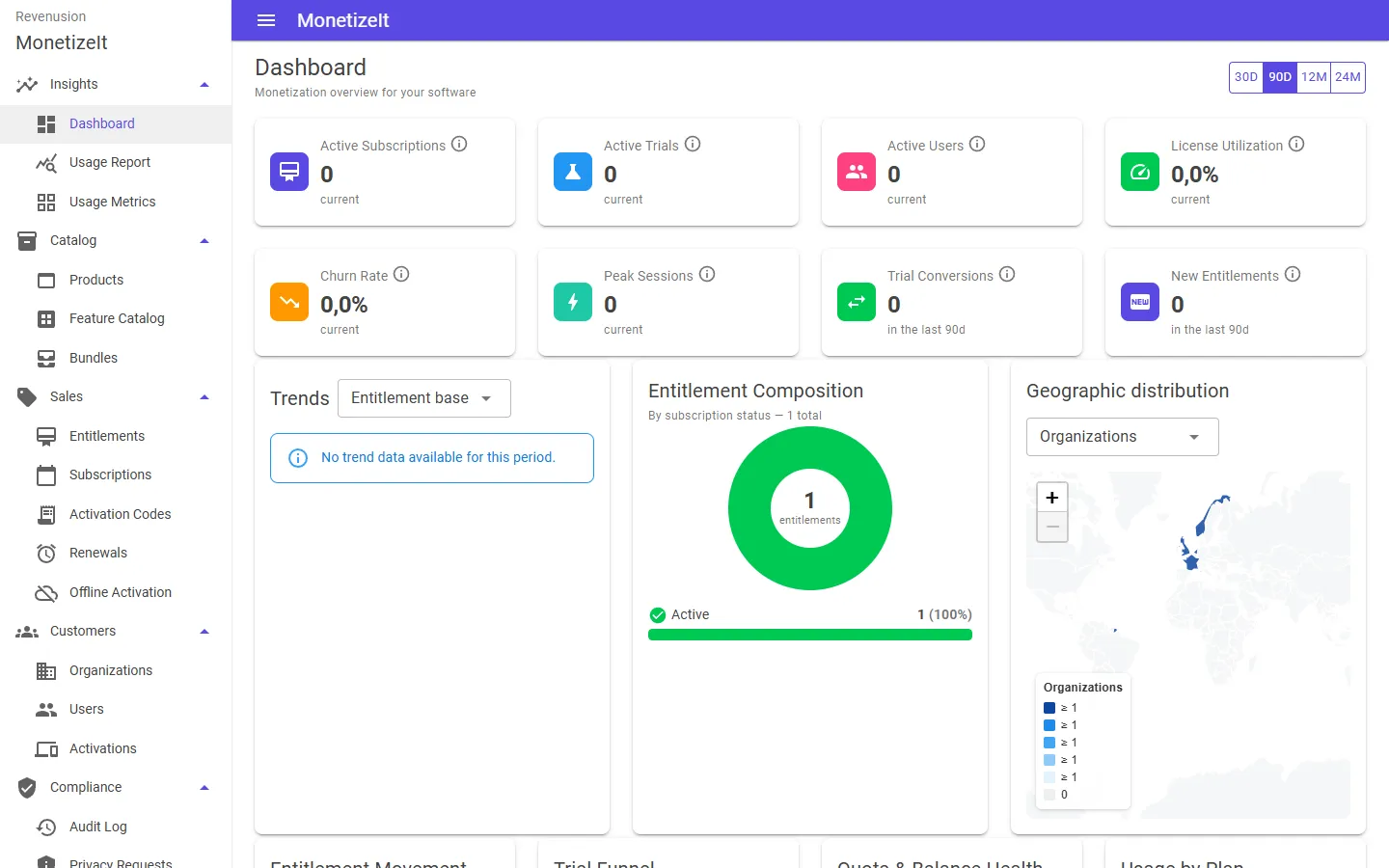
The Provision Portal dashboard — active subscriptions, trials, utilization, the entitlement mix and customer geography.
Usage by metric
Section titled “Usage by metric”Insights → Usage Metrics drills into a single metric over a period — its total, average, peak, low, latest and the change versus the previous period. Use it to spot a customer approaching a quota or a metric trending up.
Usage report
Section titled “Usage report”Insights → Usage Report is the detailed report: breakdown tables and summary cards you can read by entitlement and metric, with a CSV export of the result. This is the page to pull figures from for a renewal conversation or an internal review. The page’s address holds the metric, period and grouping you are looking at, so you can bookmark a view or send the link to a colleague and it opens on the same one.
Feature ratings
Section titled “Feature ratings”If you run in-app feature ratings, the results surface here too: features ranked by how users rate them, and the dashboard’s top-rated-features and value-delivered panels. Ratings are collected from inside your application through the SDK — the capability is described under See what’s happening.
What users are asked is set under Catalog → Rating campaigns. A campaign names the features to ask about, the question for each, and the dates it runs. A user is only asked about a feature they are entitled to. To ask only some of your customers, pick offers under Only customers of these offers: then only a customer whose entitlement was made from one of them is asked. Leave it empty to ask every customer. An offer’s Rating campaigns tab lists the campaigns limited to it.
Session activity
Section titled “Session activity”To see what’s running rather than how much is used, look at Licensing → Activations — the issued licenses with their principal, status and expiry — or an entitlement’s Issued Licenses and Usage Monitoring tabs for one grant in context.
Audit trail
Section titled “Audit trail”Administrators also have Compliance → Audit Log — an account-wide, timestamped trail of who changed what (entitlements, users, settings) with before/after detail. It’s an admin view, not part of Insights; Viewers and the operational roles don’t see it.
- Act on what you see → Renewals, credits & activations
- How usage is counted → Metering, quotas & credits